

Generating the thumbnail is the easy part.
The homepage clip shows a thumbnail being made. These four show what happens next — building the AI avatar you'll reuse forever, rewording a headline, putting a second person in frame, or swapping a completely different face onto a thumbnail you already like. No layers, no masks, no design tool.
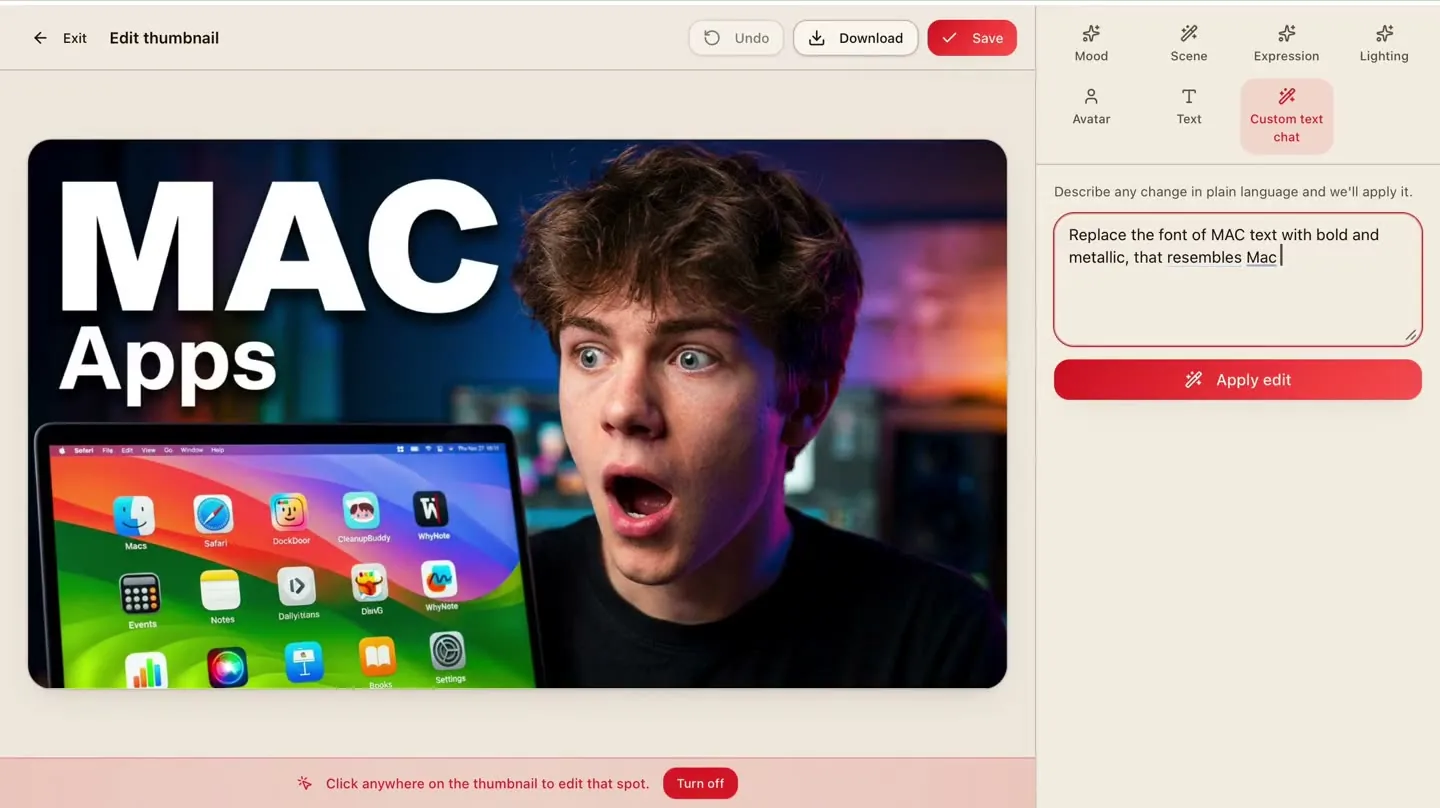
Edit by chatting
Ask for a change in plain English. It rewrites the thumbnail.
24 seconds 2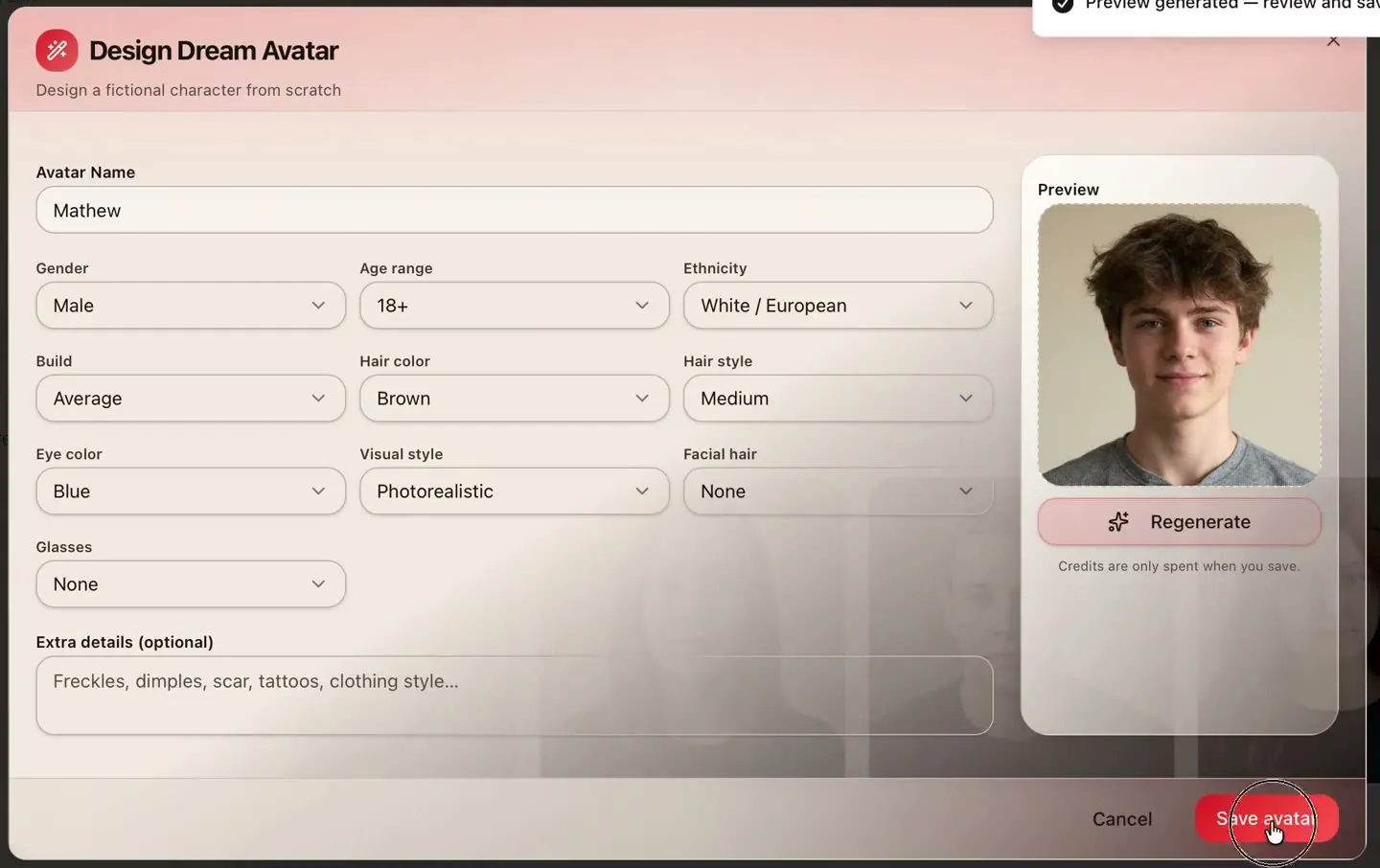
Create your avatar
Train one AI avatar, then reuse it in unlimited thumbnails.
13 seconds 3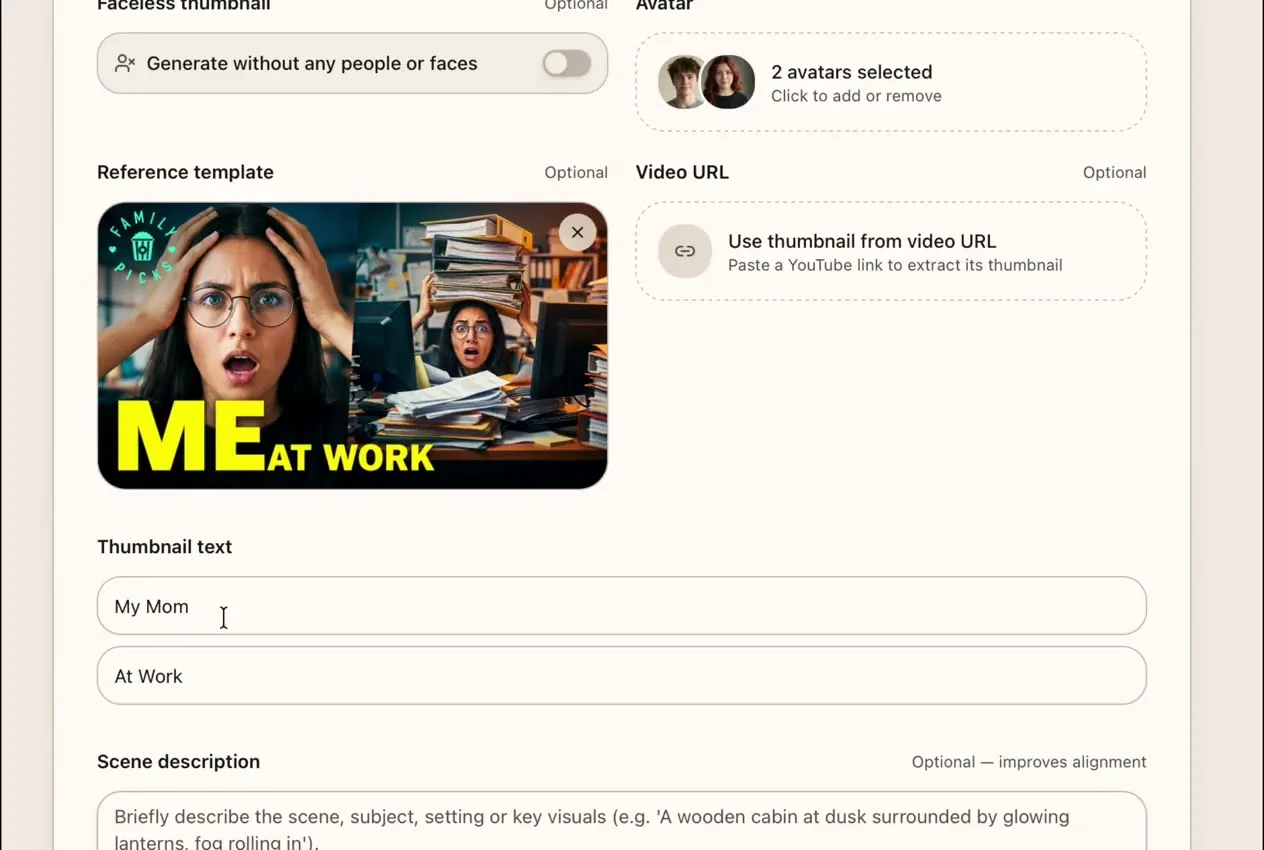
Several people, one frame
Collabs, podcasts and versus thumbnails with multiple avatars.
38 seconds 4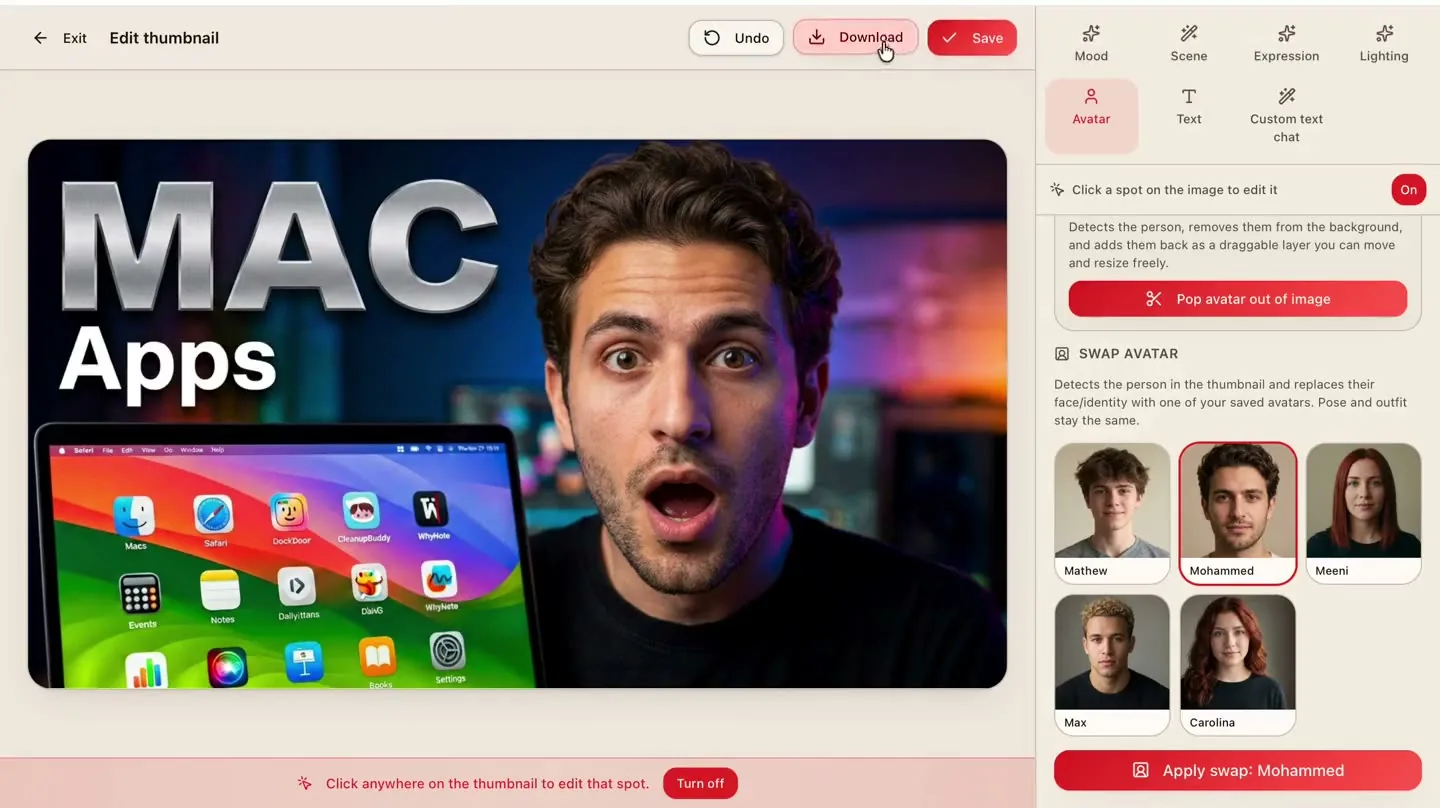
Swap face & background
New face, new expression, new backdrop — same winning layout.
19 secondsSay what you want changed. That's the edit.
Most thumbnail tools hand you a canvas and expect you to know what a blend mode is. Thumblore hands you a text box. Tell it the headline is too long, the red is too dull, the face should be bigger — it re-renders the thumbnail with that change and leaves everything else alone. Every edit is a new version, so nothing you liked gets destroyed on the way to something better.
Rewrite the headline
Shorten it, punch it up, or ask for three alternatives and keep the one that reads best at phone size.
Restyle without redoing
Change colour, mood or typography while the composition that already works stays put.
Nothing is destructive
Each instruction produces a new version. Compare them side by side and roll back freely.
Train one AI avatar. Use it in unlimited thumbnails.
Your face is the most clickable thing on your channel, and re-shooting it for every upload is why most creators quit making thumbnails at all. So you train an avatar once. Describe the person you want — gender, age range, ethnicity, build, hair, eyes, visual style — or add a line of detail in your own words, hit generate, and keep regenerating until the preview looks right. Save it and it becomes a permanent part of your avatar library.
After that there is no per-use cost and no retraining. One saved avatar goes into unlimited thumbnails, at any angle, in any expression, on any background - so every video you publish shows the same recognisable face. That consistency is what turns a thumbnail into branding.
Train once, use unlimited
A saved avatar has no per-use cost. Put it in as many thumbnails as you want, forever.
No camera required
Build a face from a description instead of a photo — ideal for faceless and anonymous channels.
The same face every time
One avatar across every upload, so your thumbnails are recognisable at a glance in the feed.
More than one person in the same thumbnail.
Collabs, podcasts, reactions, versus videos — the formats that perform best usually need two or three faces, and that is exactly where single-face generators fall over. Save each person as an avatar once, then pull any combination of them into a thumbnail. Thumblore places and lights them together so they look shot in the same room rather than pasted onto the same rectangle.
Built for collabs
Two-up, three-up and versus arrangements that keep every face readable at 320px wide.
Matched lighting
Faces are relit to share one light source, so a guest doesn't look cut out and dropped in.
Save once, reuse forever
Your regular guests stay in the avatar library — no re-uploading a photo every episode.
Keep the layout that works. Change everything inside it.
When a thumbnail format starts performing, you want to run it again — with a different guest, a different reaction, a different setting. Thumblore lets you replace the avatar in a finished thumbnail without regenerating it from scratch: swap the face, dial the expression from calm to shocked, or drop in a new background while the framing, headline and colour stay exactly where you put them. One proven layout becomes a whole series.
Change the face
Drop a different saved avatar into a thumbnail you already like, at the same size and angle.
Dial the expression
Shocked, angry, excited, confident — the expression is a setting, not a new photo shoot.
Replace the background
Swap the scene behind the subject, or pull a frame from your video in as the backdrop.
Everything you just watched takes about a minute.
Start free - no signup needed for your first thumbnail.